
Player Configurator
This week's Tip of the Week is about Lightcast’s Player Configurator, which is a very powerful tool within the Media Cloud that provides you with the power to control the embeddable Lightcast web players on an account level. This means that any changes configured and saved in your Player Configurator are updated in real-time on your Lightcast players wherever embedded, whether it’s on your website, the Web App, Mobile Apps or Player Landing Pages. 🚀
With the Player Configurator you will have the power to:
💡 Enable and Disable the Lightcast Branding of the Player
💡 Upload, Display or Hide your custom Player Logo Overlay and Player Icon
💡 Select a Skin Color for your Player
💡 Link your own URL to your custom Player Logo Overlay and/or Player Icon
💡 Select which Social Sharing Links you would like to display
💡 Select a 3rd party embed option
💡 Display or Hide the View Count and Publish Date in On-Demand Channel Playlists
Watch this Video to See How to Use the Player Configurator:
What's new with the Player Configurator?
Sharing and Embed options have been added to the Player Configurator so that you can release a change to all Players in WebApps, Mobile Apps, embedded on Websites and on the Player Landing Pages at the same time!
If you would like to control the Player Sharing and/or Embedding only for a specific Channel, you will still be able to do that within the Channel Manager's EMBED Tab and SETTINGS Tab.
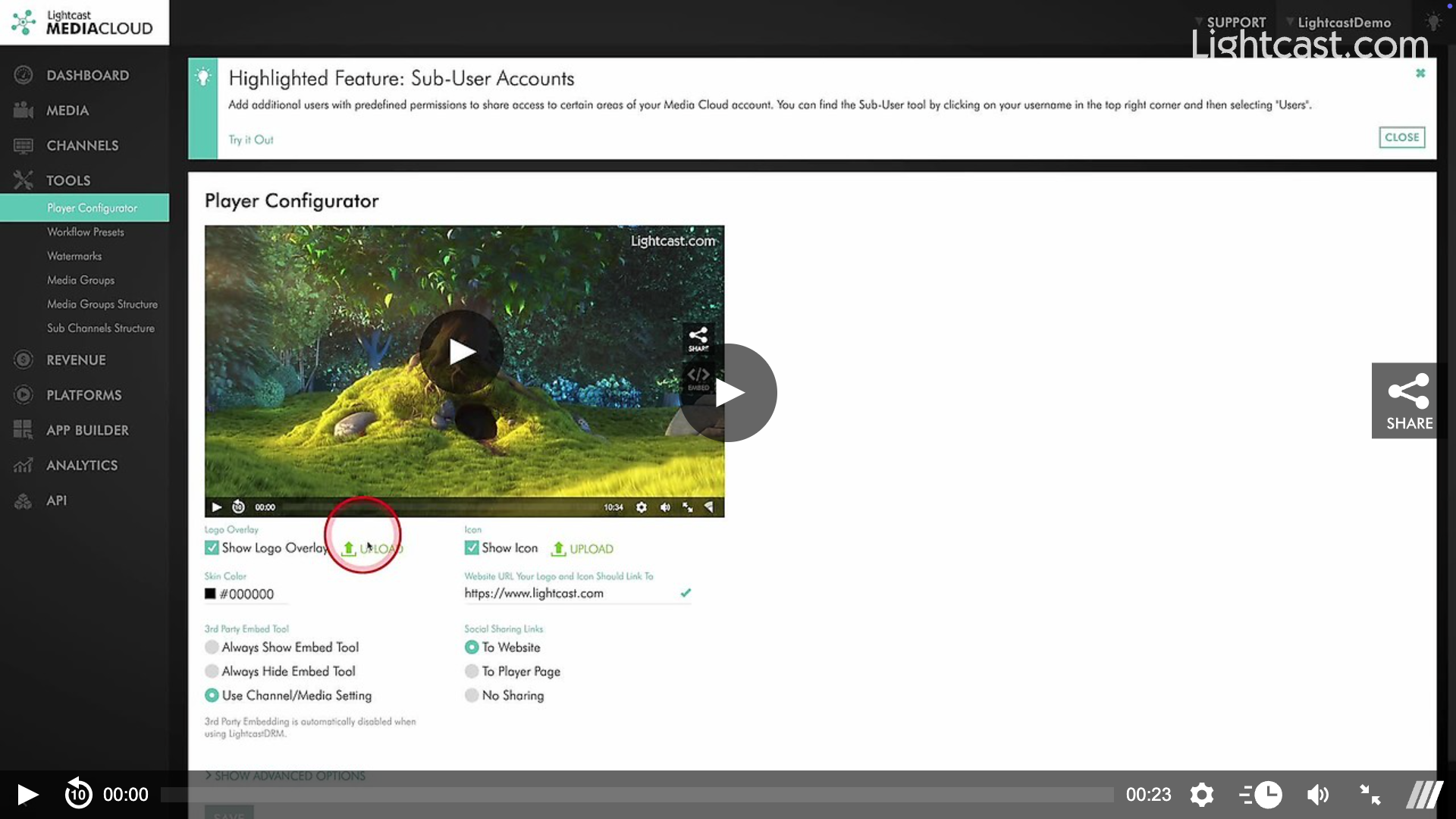
Watch this Video to See How to Control Sharing Options for WebApps, Mobile Apps, and Web Players:
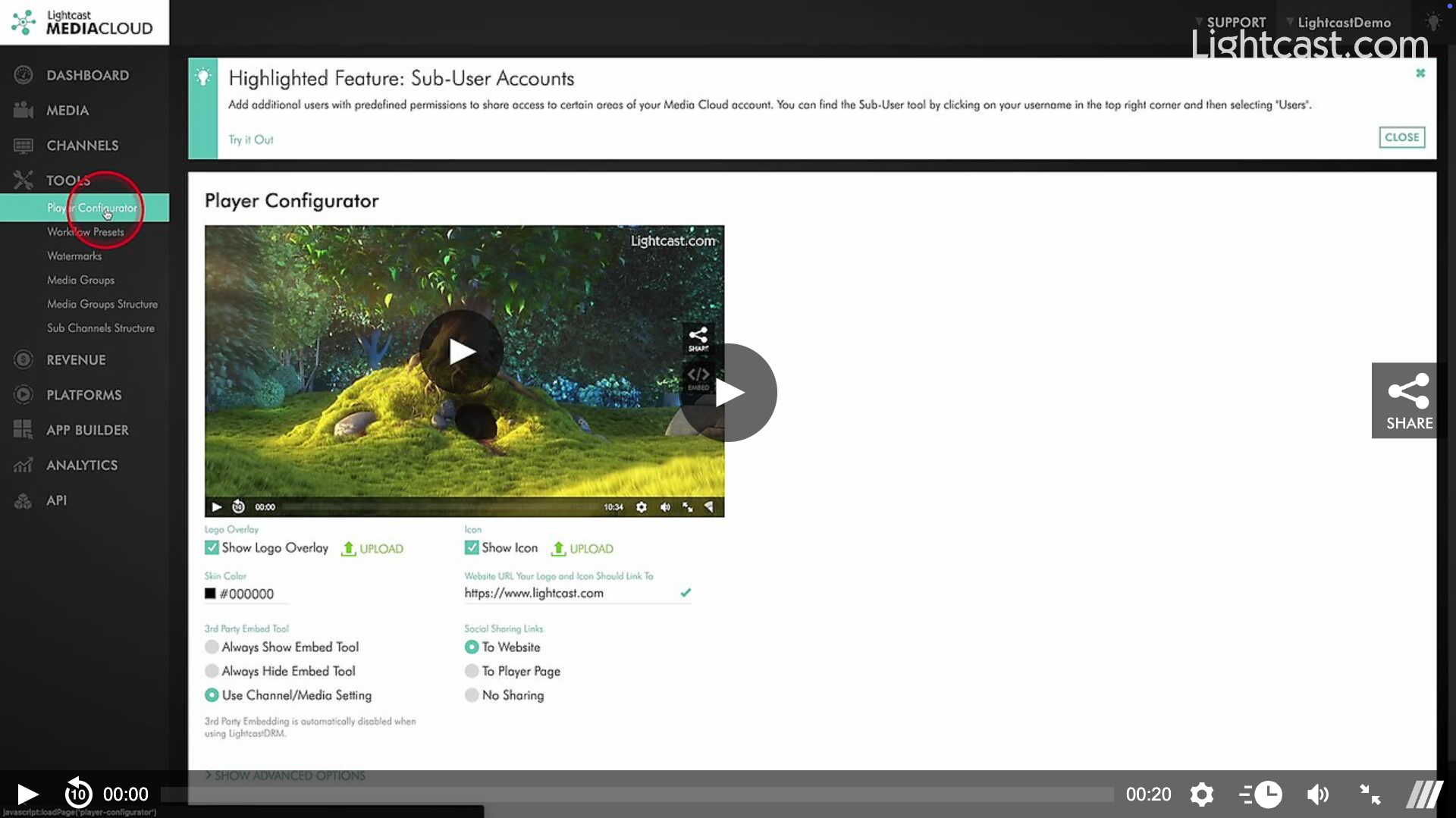
Watch this Video to See How to Control Embed Options for WebApps, Mobile Apps, and Web Players:

For previous tips, visit our tips page!
Would you like a specific topic to be covered by an upcoming “Tip of the Week”? Click here to submit your request!
Happy Streaming!
Your Lightcast Success Team