
How to Embed Your Videos
Want your videos to reach more viewers outside your apps? Embedding them on your website is easy! Whether it's a single video, a Sub-Channel, or a full VOD playlist, we'll show you how to get it done in minutes.
1️⃣ Embed a VOD Channel Playlist
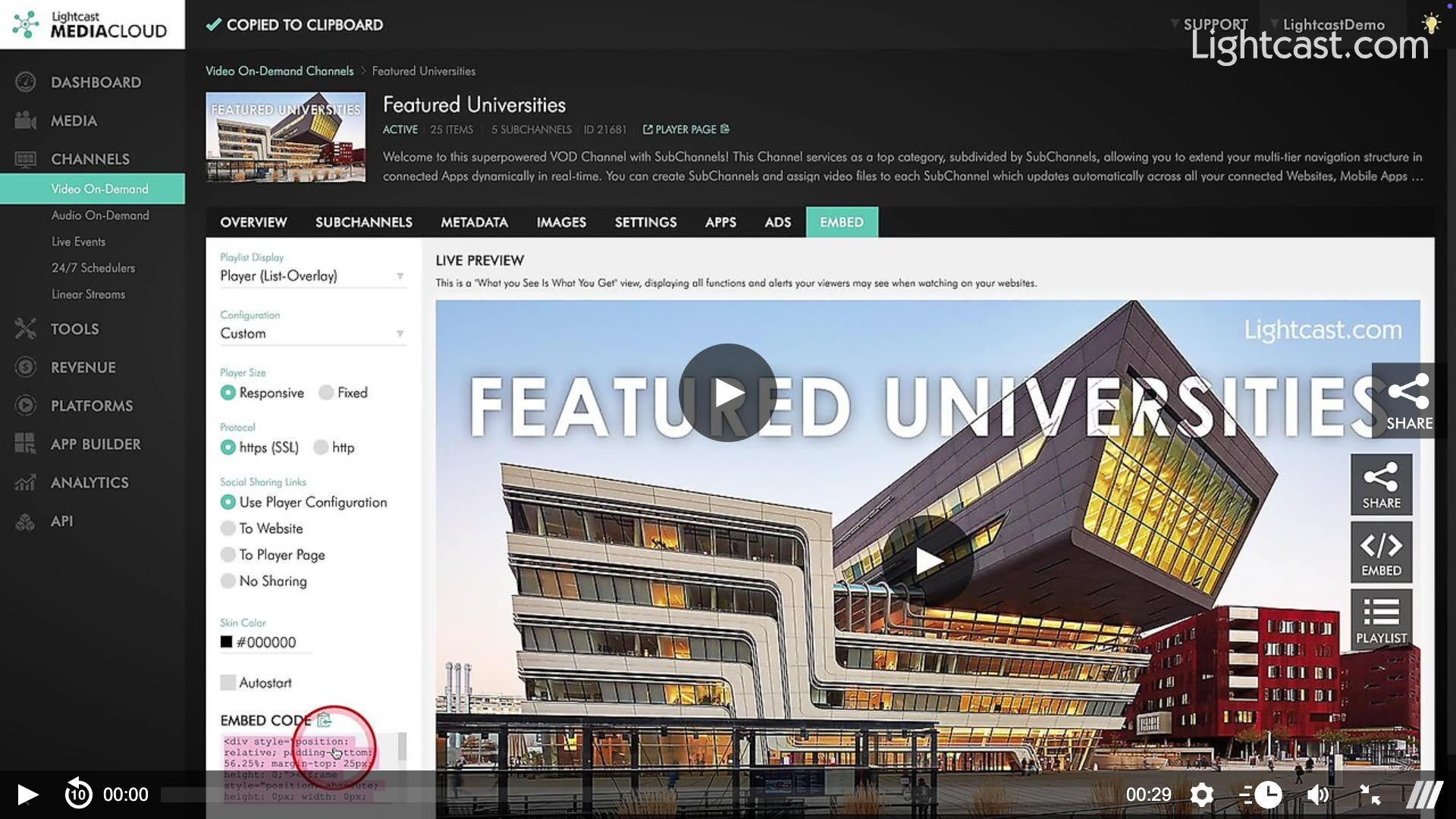
Navigate to Channels → select a VOD Channel → EMBED tab.
Copy the player embed code for your website.
2️⃣ Embed a Sub-Channel Playlist
Go to Video On-Demand → SUBCHANNELS → select a Sub-Channel → EMBED tab.
Copy the player embed code.
3️⃣ Embed a Single Video Player
Go to Media → Video Archive → select a video → EMBED tab.
Copy the player embed code.
4️⃣ Build Custom Pages with Lightcast API
Use the LightcastAPI to create dynamic content pages with auto-populated thumbnail galleries and player pages.
Learn more about the API
💡 Pro Tip: Always test your embed code on your site before publishing to ensure the player appears correctly and matches your design.
Watch this Video to See How to Find the Embed Code for a VOD Channel Player:

For previous tips, visit our tips page!
Would you like a specific topic to be covered by an upcoming “Tip of the Week”? Click here to submit your request!
Happy Streaming!
Your Lightcast Success Team