
Live Streams in 24/7 Scheduler
This week, we're spotlighting how the 24/7 Cloud Scheduler makes it easy to incorporate LIVE events into your always-on linear programming.
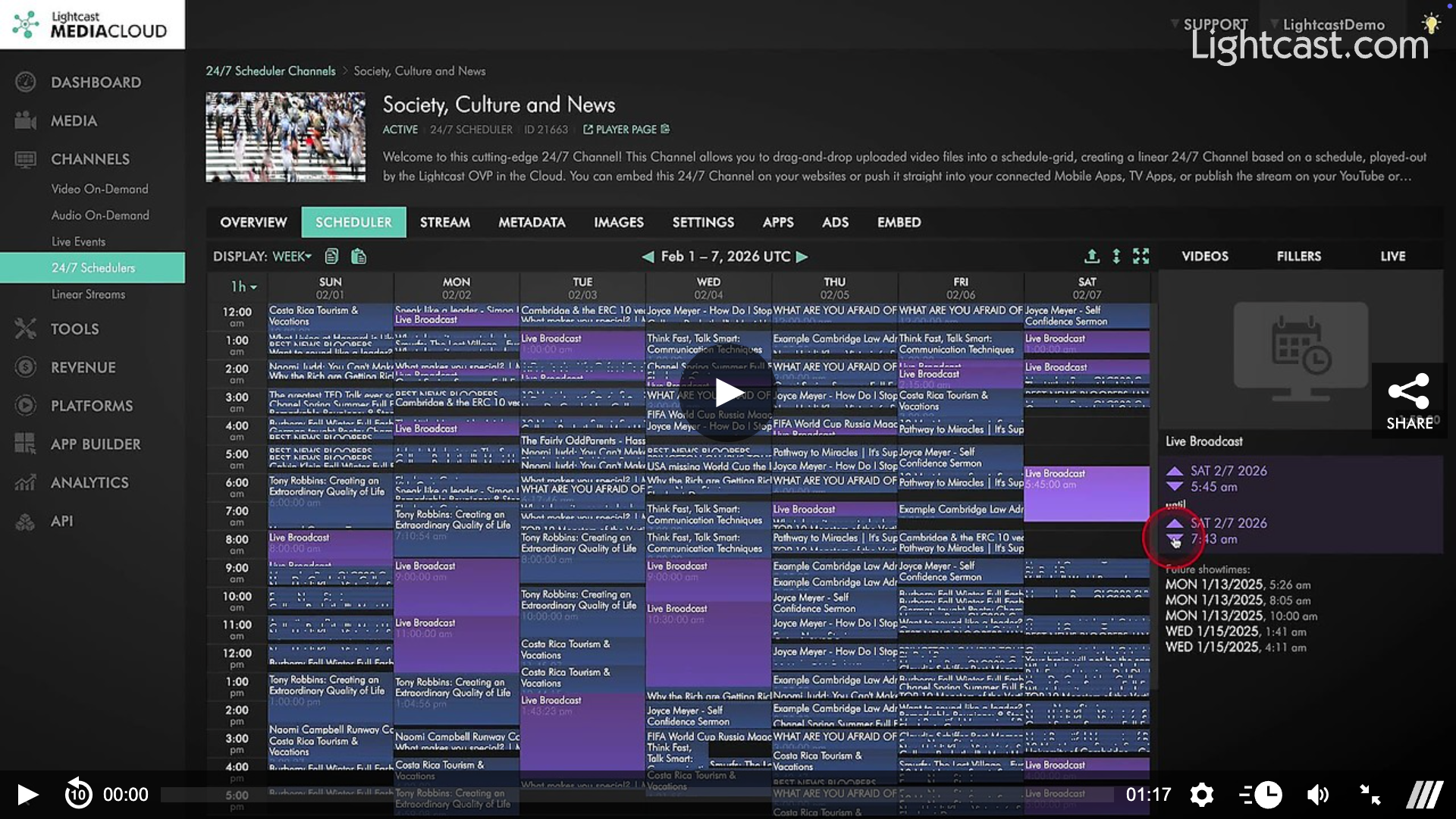
With the LIVE feature in your 24/7 Cloud Scheduler, you can schedule and broadcast live content directly inside your continuous stream. At the exact time you choose, your live feed temporarily takes over your 24/7 channel—and when the event ends, your scheduled programming automatically resumes.
It’s a powerful way to deliver news, webinars, concerts, or special events without interrupting your viewer experience.
⏰ Schedule Live Broadcasts with Precision
You have full control over when and how long your live events run:
Choose from predefined event lengths (15-180 minutes)
Or set a custom start and end time to match your exact event
Add a live event by dragging the LIVE option into your 24/7 Scheduler
📡 What You Need Before Going Live
To ensure a smooth broadcast, your encoder must be streaming before your scheduled live time begins. If no live signal is detected, your 24/7 Channel will temporarily display nothing during that time block.
Pro Tip: Start your encoder a few minutes early to display a countdown timer or intro video before the live broadcast begins – perfect for building anticipation with your audience.
📅 Plan Ahead
Your 24/7 schedule locks at midnight (EST) each day, so changes can only be made for the next day or later. Same-day updates aren't available, so be sure to schedule live events in advance.
⚙️ Connect Your Encoder
To broadcast live through your 24/7 Channel:
Copy the CDN Access Point from the STREAM tab
Copy the Stream Key
Paste both into your encoder before going live
Once connected, your live feed will automatically take over your 24/7 Channel at the scheduled time.
Watch this Video to See How to Schedule a Live Stream in your 24/7 Cloud Scheduler
**Additional fees may apply to activate the "LIVE" feature in the 24/7 Scheduler.

For previous tips, visit our tips page!
Would you like a specific topic to be covered by an upcoming “Tip of the Week”? Click here to submit your request!
Happy Streaming!
Your Lightcast Success Team