
Casting Videos & Live Streams
Ever wished you could watch a video or live stream from your mobile device on a bigger screen—like your TV—for a more immersive experience with family and friends?
With Lightcast's Chromecast and Apple AirPlay publishing feature, your viewers can easily cast content from the Lightcast Player to any TV screen with built-in casting support or a connected Chromecast device—as long as both devices are connected to the same WiFi network.
How does it work?
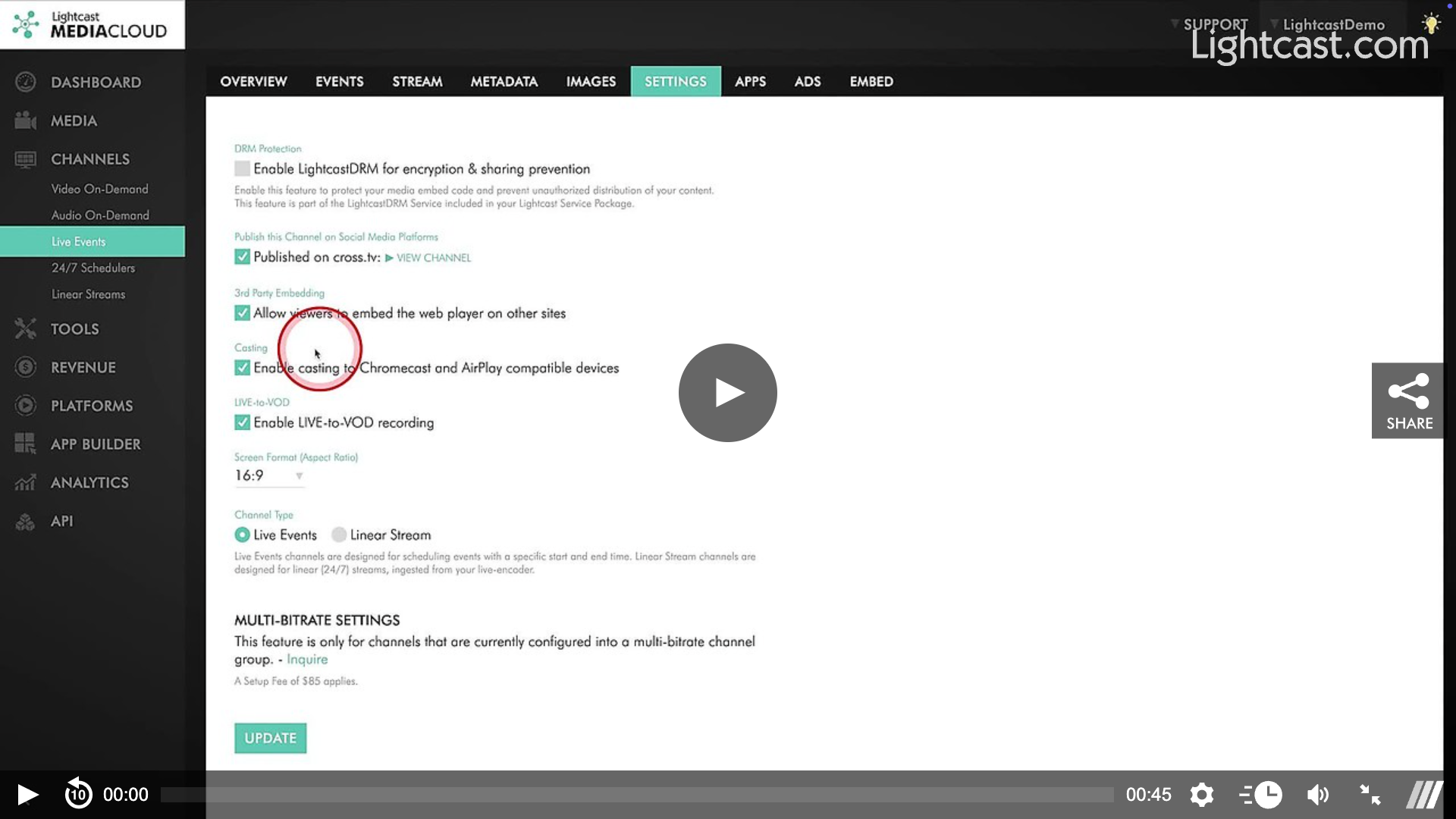
If the Chromecast/Apple AirPlay Casting feature is included in your package, you can easily enable or disable it in the Settings of each individual Channel.
👉 Simply navigate to “Channels” in the left-hand menu of your Media Cloud account, select the Channel you’d like to update, then click on the “Settings” tab. Scroll down to the option labeled “Enable casting to Chromecast & AirPlay compatible devices” and toggle it on or off as needed.
Please note: Due to memory constraints in certain Chromecast devices, this service is not recommended for VOD Channels with more than 40 items in the playlist.
Watch this Video to see How to Enable/Disable Chromecast and Apple AirPlay

For previous tips, visit our tips page!
Would you like a specific topic to be covered by an upcoming “Tip of the Week”? Click here to submit your request!
Happy Streaming!
Your Lightcast Success Team