
Adding a Countdown
This week's Tip of the Week highlights a simple but powerful way to promote your live broadcasts: adding a countdown timer to your scheduled live events.
A countdown timer helps viewers know exactly when your event starts, builds anticipation, and makes it easier for them to plan ahead – or invite others to watch. Think of it as a built-in marketing tool that works across all platforms connected to your Lightcast Media Cloud.
⏳ Why Use a Countdown Timer?
When a countdown is enabled, viewers will see a live countdown on your Channel player embedded on your website – clearly showing when the stream will begin (and when it's scheduled to end). This creates excitement and eliminates guesswork.
📱 Where Viewers See It
Website Player
A countdown appears directly in the Lightcast player, counting down to your next scheduled live event.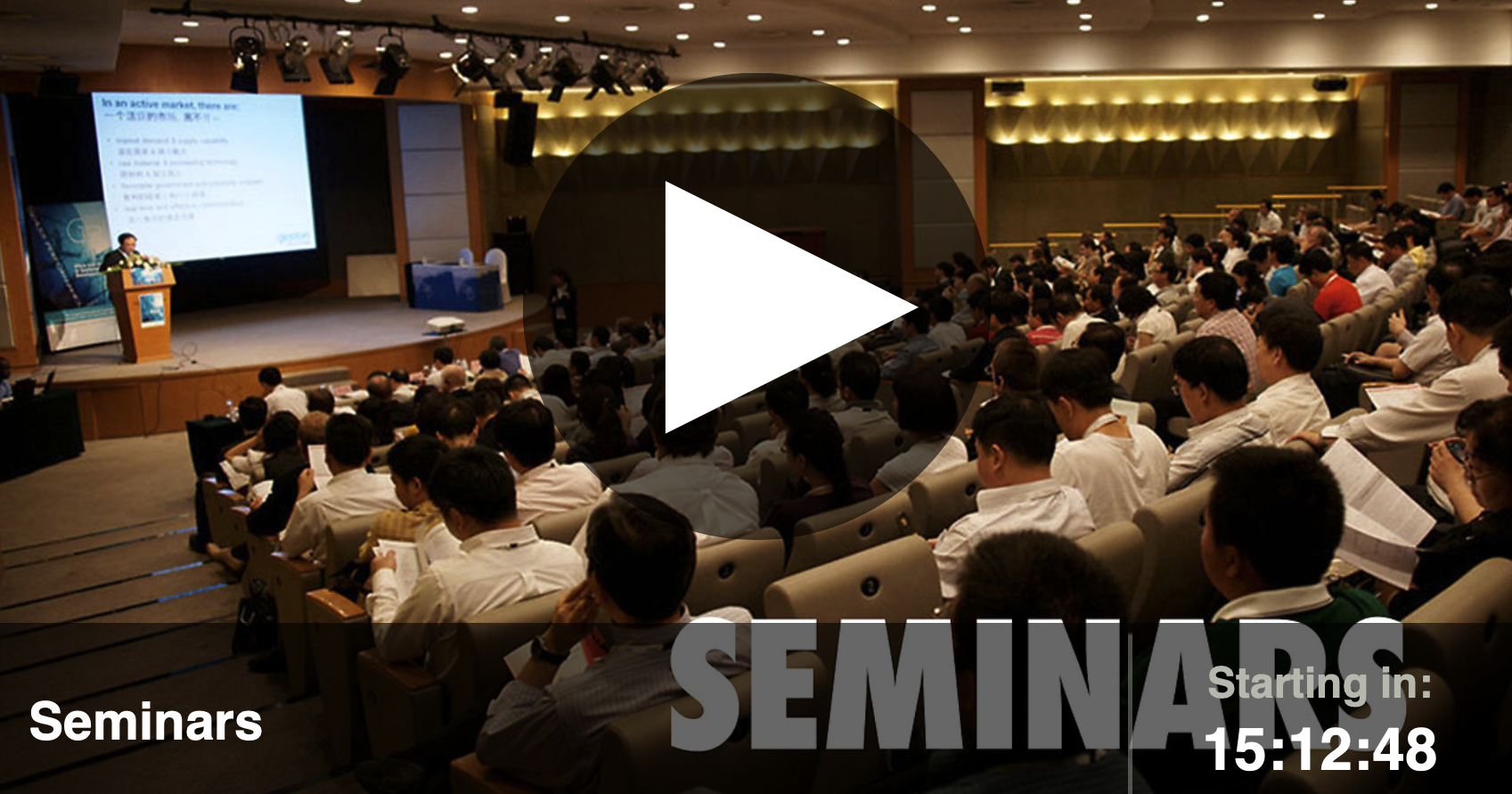
Web Apps
If you use a Lightcast Web App, upcoming live events appear at the top of the Events Schedule – making it easy for viewers to see what's coming next.
Apps & Platforms That Require Scheduling
Many publishing destinations – including Facebook Live, YouTube Live, iOS & Android Apps, Roku, Fire TV, and other Smart TV platforms – require a scheduled start and end time to properly display and broadcast a live stream. Adding a countdown ensures your event meets those requirements.
📊 Better Data & Reporting
Scheduling your live event with a defined start and end time also allows you to capture accurate statistics tied specifically to that broadcast.
🛠️ Before You Add a Countdown
Make sure the LIVE Channel where you schedule your event is:
Embedded on your website using the Lightcast player
Published to your Web App, TV Apps, and Mobile Apps
Helpful links:
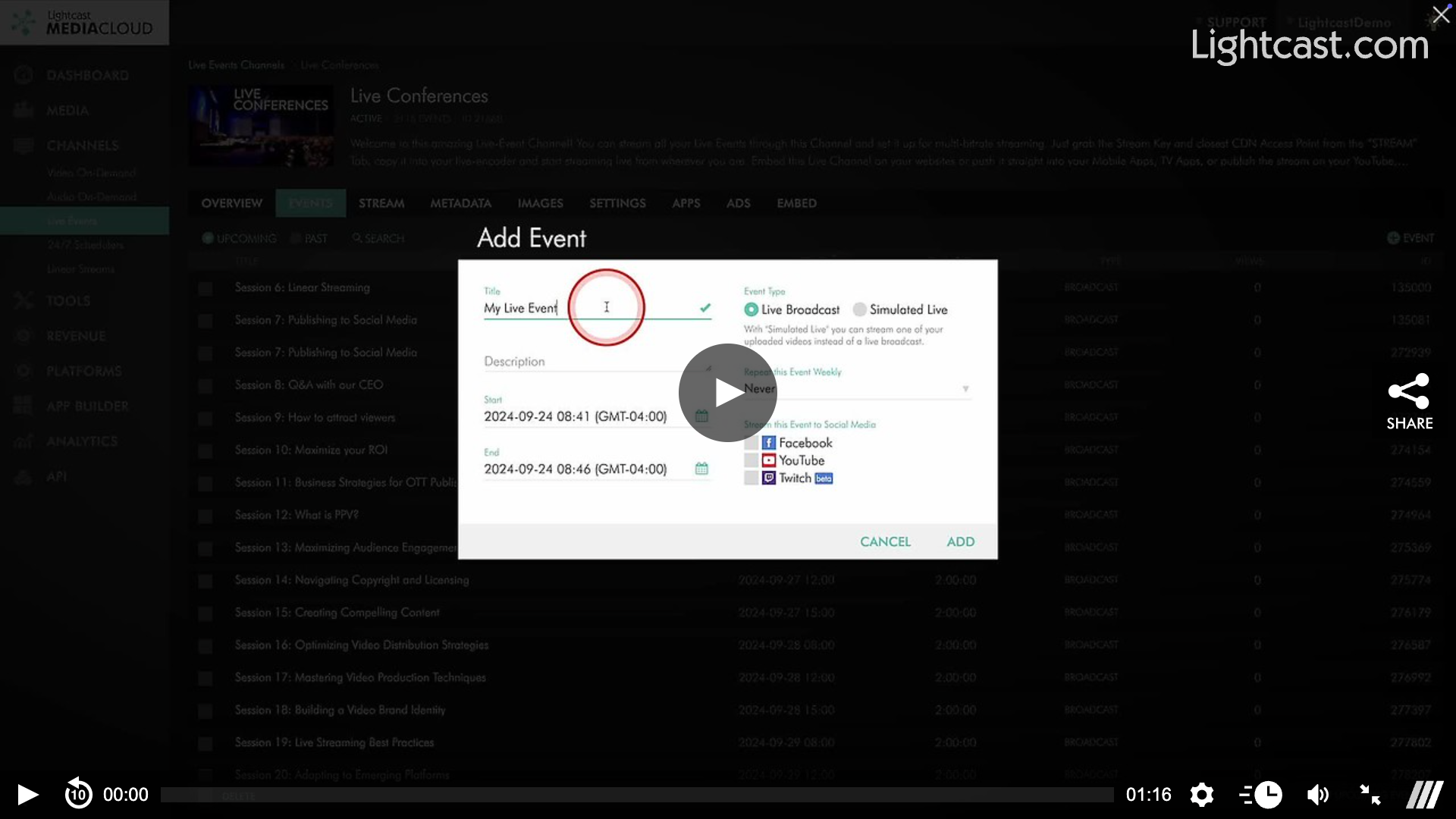
Watch this Video to See How to Add a Countdown for your Live Events

For previous tips, visit our tips page!
Would you like a specific topic to be covered by an upcoming “Tip of the Week”? Click here to submit your request!
Happy Streaming!
Your Lightcast Success Team