
Ingesting Live Streams
Continuing with our Live Streaming theme, today we would like to show you how to ingest your live streams into the Lightcast CDN:
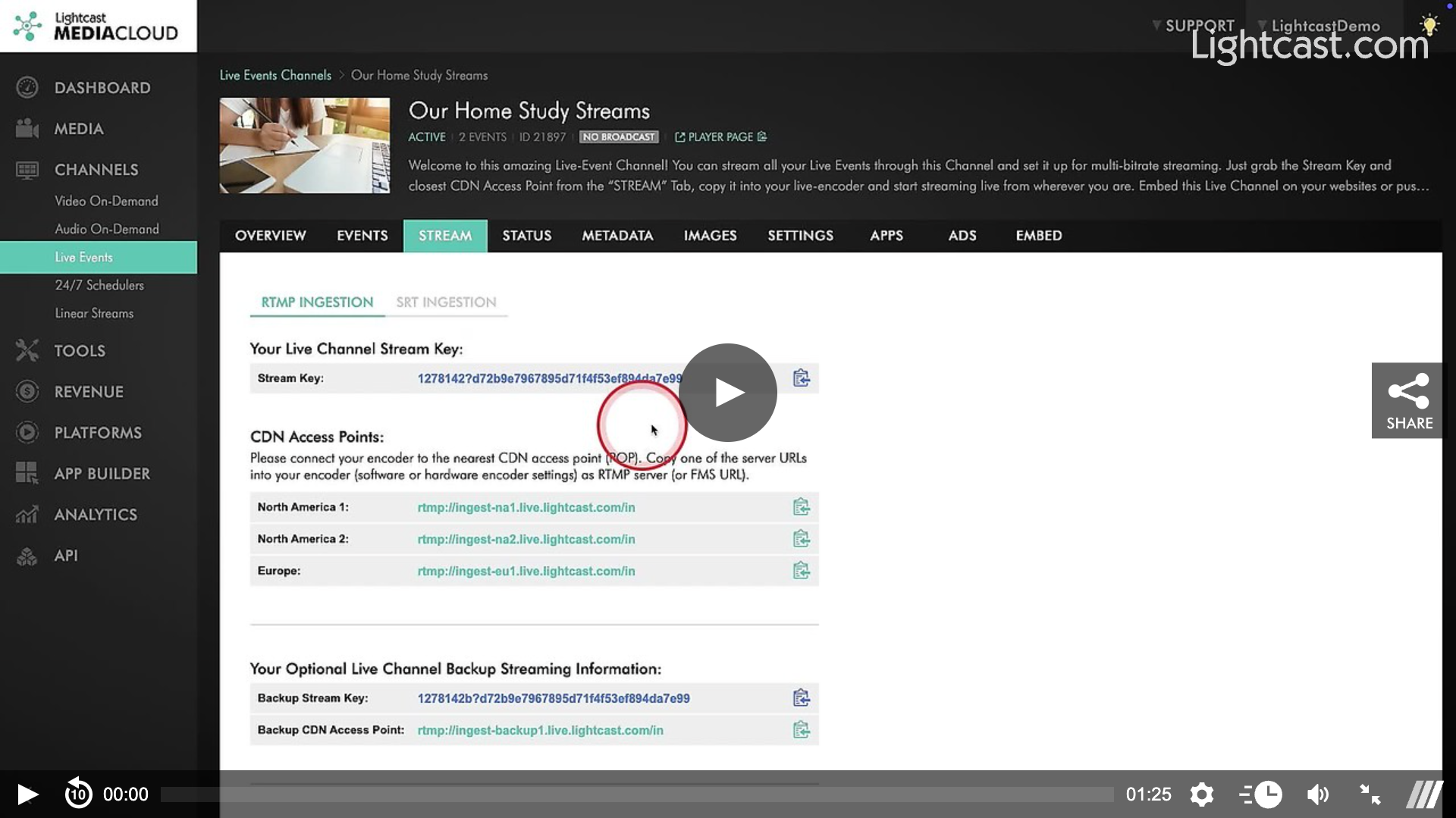
Click on a LIVE Event Channel in your Lightcast Media Cloud account and click on the "STREAM" tab. Each of your LIVE Channels has a unique Stream Key which you need to copy and paste into your Live Streaming Encoder so that your live stream reaches the correct LIVE Channel. Should you send multiple bitrates for bitrate-adaptive delivery you need to repeat this process for each bitrate stream. Your encoder may, or may not, be able to send multiple bitrate streams. Please check with your encoder manufacturer.
Then choose a CDN Access Point location which is closest to your geographical streaming location. You can stream to multiple CDN Access Points for a variety of purposes, such as sending a backup to a different CDN Access Point for redundancy sake. Just make sure you have enough bandwidth available at your broadcast location (more about backup streams at this article: https://mediacloud.lightcast.com/cms/live-streaming-tutorial).
For multi-bitrate live streaming, you can either ingest multiple bitrates into multiple LIVE Channels, or you can have Lightcast transrate your ingested single bitrate into multiple bitrates at a separate service fee. More details about different multi-bitrate options for live-streaming can be found at: Understanding Multi-Bitrate Streaming.
Watch this Video to See How to find the Live Channel Stream Key and CDN Access Point
For previous tips, visit our tips page!
Would you like a specific topic to be covered by an upcoming “Tip of the Week”? Click here to submit your request!
Happy Streaming!
Your Lightcast Success Team