
Sub-Channels
Sub-Channels can be used on a variety of TV Apps (Roku, FireTV, AppleTV, etc.), Web App and Mobile Apps as sub-categories within your VOD/AOD Channels, adding an additional navigation level to your publishing properties.
You can use Sub-Channels to:
💡 Group videos in a channel by topics or themes
💡 Create and manage sub-categories in your TV Apps, Web App and Mobile Apps
💡 Organize your videos within a Channel and make the navigation in your TV Apps, Web App and Mobile Apps more user friendly. Especially if you have more than 20-30 videos in a VOD Channel, the Sub-Channel feature helps viewers to better find their content of interest.
💡 The "Sub-Channels Structure" option within the "Tools" section of your Media Cloud allows you to quickly identify which of your On-Demand Channels are organized in Sub-Channels. If Sub-Channels have been enabled for your connected Apps (TV Apps, Web App and Mobile Apps) through the App Builder, this feature offers a clear snapshot of your apps' navigation framework.
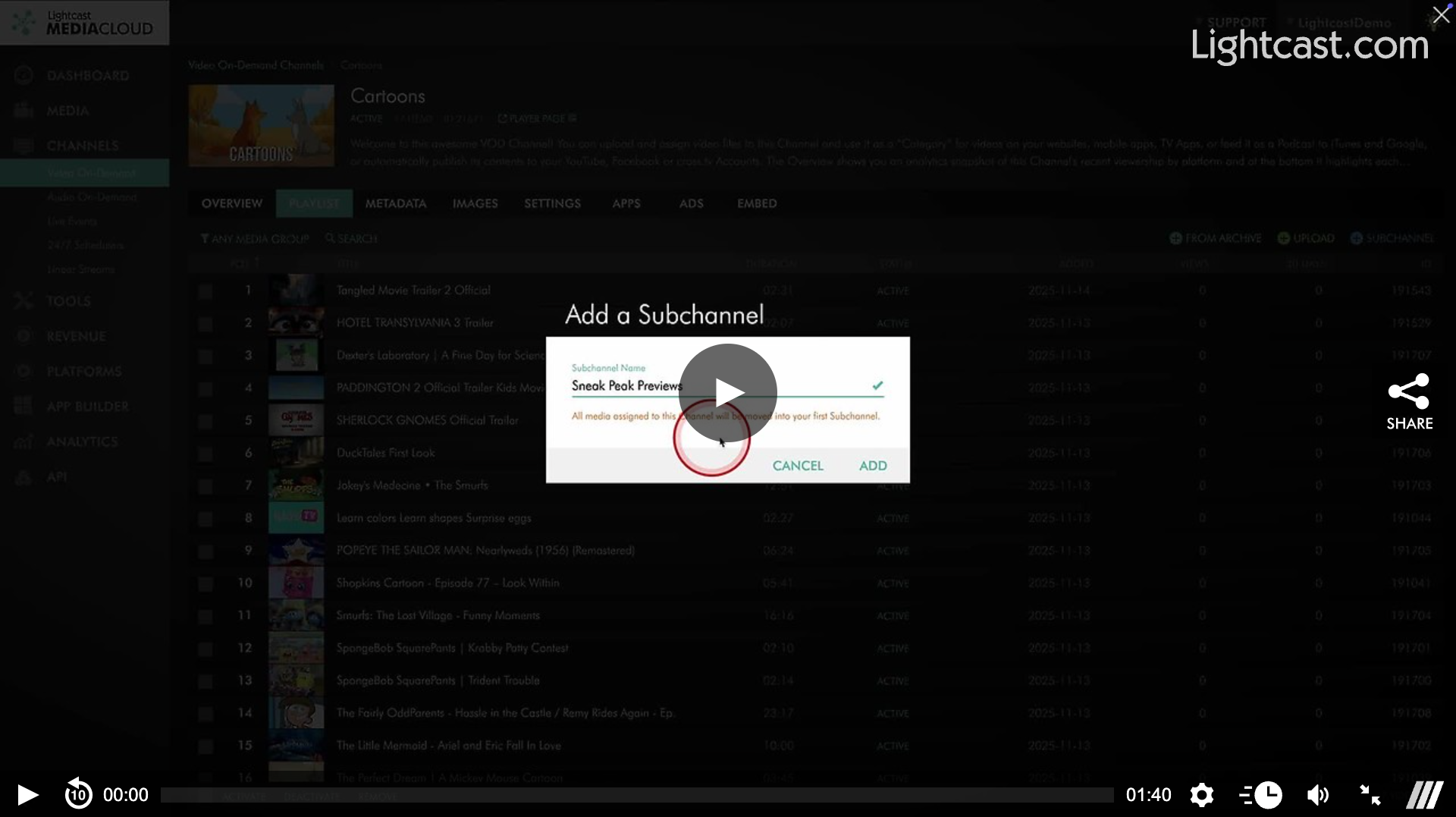
Watch this Video to See How to Add a Sub-Channel to a VOD Channel

For previous tips, visit our tips page!
Would you like a specific topic to be covered by an upcoming “Tip of the Week”? Click here to submit your request!
Happy Streaming!
Your Lightcast Success Team