
Schedule Publish & Unpublish Date
With the Lightcast Schedule Publish Date feature you can easily automate the publishing of your content to a Channel. Another smart efficiency tool to put your publishing on auto-pilot!
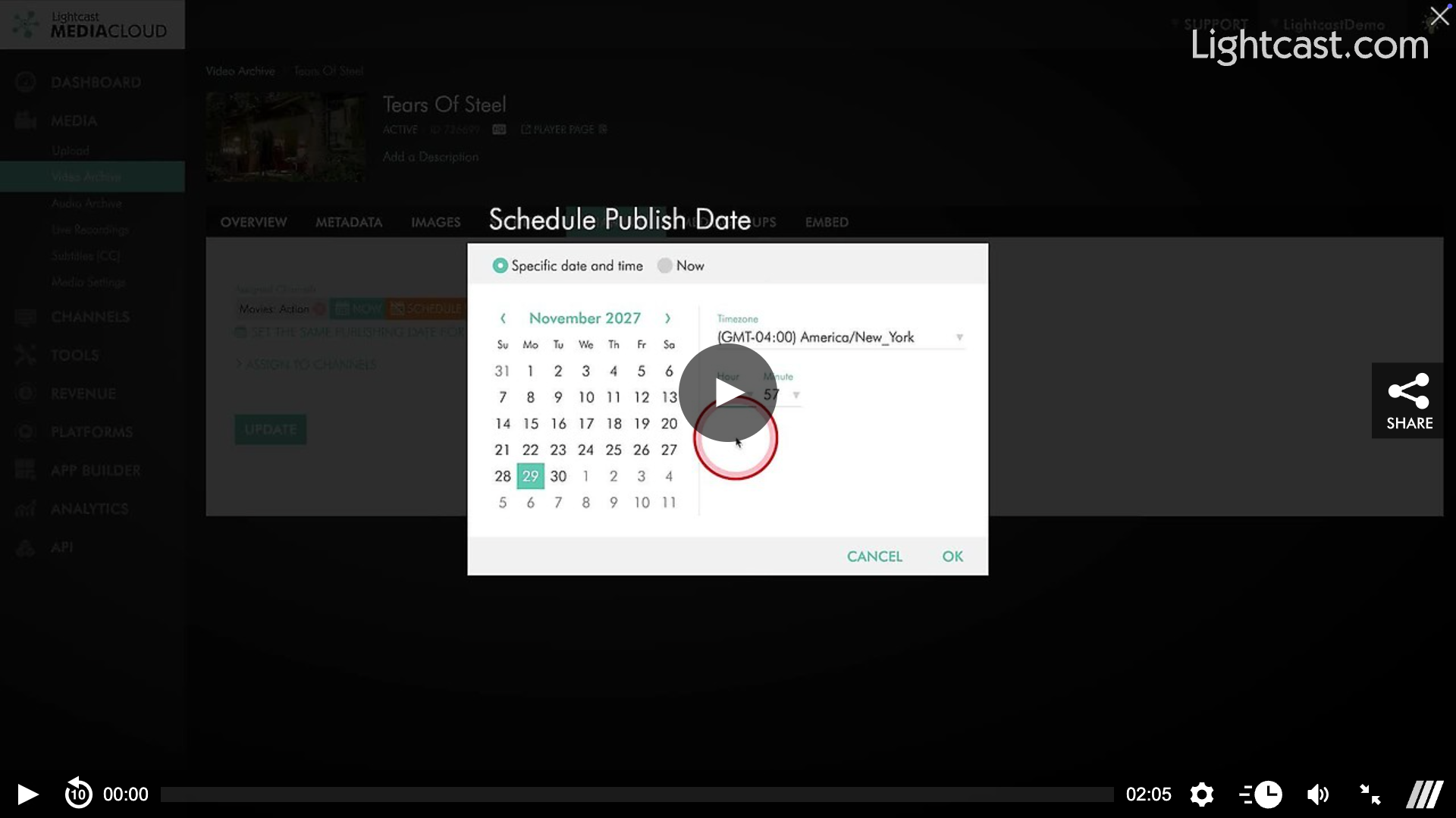
You can assign a future publishing date once your media item has been uploaded to your account and is sent to our encoding farm. In other words, as soon the status for your media item switches from "Waiting" to "Queued" you can schedule a future publishing date.
We recommend uploading your media item without assigning it to a Channel to be able to schedule the publishing date before encoding is completed, and to avoid your video going live on your connected publishing properties.
If you would like to wait until after the media item was successfully encoded you can find it in your "Video Archive" (left-hand menu). Click on the video item, and then click on the Channels tab to assign it to a Channel and set the publishing date.
Watch this Video to Learn How to Set a Future Publishing Date
Another way to efficiently automate the availability of your content is to use the Schedule Unpublish Date feature!
Similar to the Schedule Publishing tool, the Schedule Unpublish tool allows Publishers to automate the unpublishing of media items from their Channels.
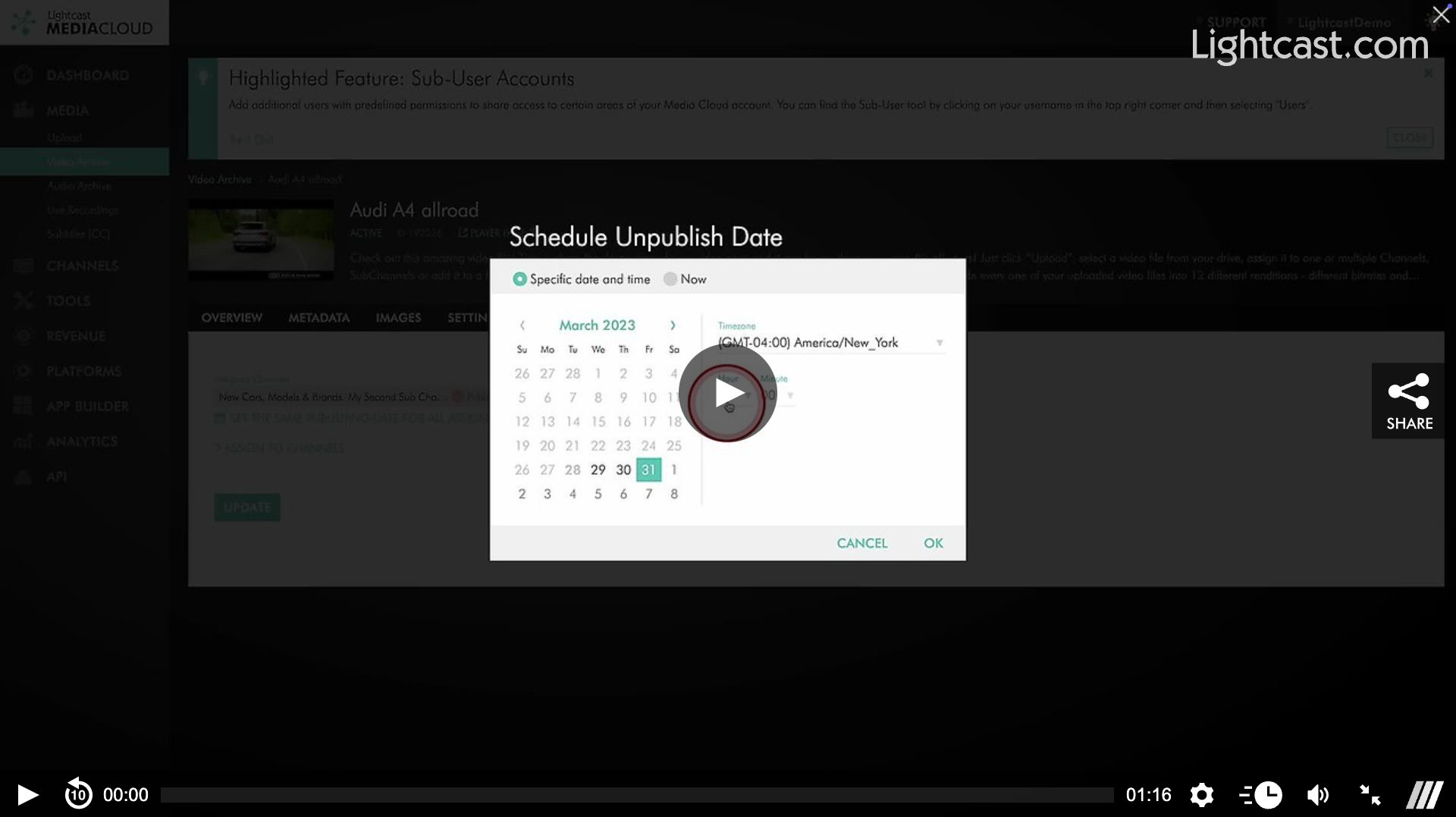
Simply click on the media item you would like to unpublish on a specific date and switch to the CHANNELS tab. Select your preferred day and time by clicking on the orange "SCHEDULE UNPUBLISH" button. The media item will automatically be removed from the assigned Channel on the day and time you selected.
Watch this Video to Learn How to Schedule a Video Item to Unpublish

For previous tips, visit our tips page!
Would you like a specific topic to be covered by an upcoming “Tip of the Week”? Click here to submit your request!
Happy Streaming!
Your Lightcast Success Team