
Media Groups
Media Groups are a great way to organize your video assets. They allow you to sub-categorize the content within VOD Channels by assigning videos to the desired Media Group.
Media Groups don't belong to a specific VOD Channel. They are independent from VOD Channels. Videos can be assigned to one or multiple Media Groups and all your Media Groups are available for assignment for all your videos. The advantage is, that videos from across multiple VOD Channels can be assigned to one or multiple Media Groups. A Media Group will be displayed on your connected properties, such as Websites, Mobile Apps or Connected TV Apps, provided it is integrated on the desired OTT or Mobile App by a developer and only if you assign videos to it.
There are 2 options for Media Groups to be displayed as sub-category within a VOD Channel:
If a Media Group like e.g. "My Sub-Category 1" should be displayed only within one VOD Channel, only assign videos from that specific VOD Channel to the "Sub-Category 1" Media Group.
If the Media Group "My Sub-Category 1" should be displayed across multiple VOD Channels, e.g. to "My VOD Channel 1" and "My VOD Channel 3", you would have to assign videos from "My VOD Channel 1" and "My VOD Channel 3" to that specific Media Group.
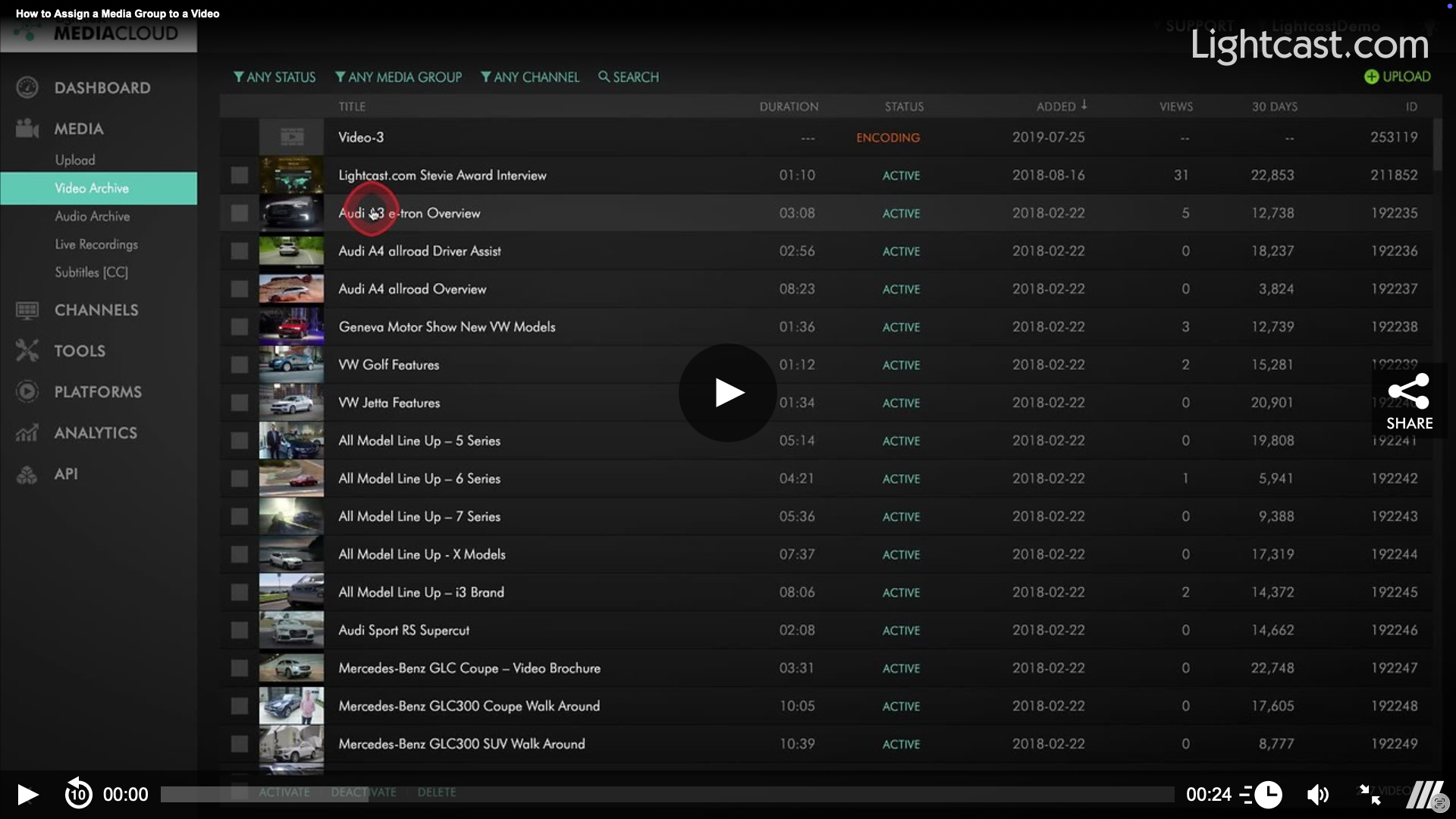
Watch this Video to See How it Works
For previous tips, visit our tips page!
Would you like a specific topic to be covered by an upcoming “Tip of the Week”? Click here to submit your request!
Happy Streaming!
Your Lightcast Success Team